Quick Start
Once approved, strategies will be added to your TradingView account. You can find it in the ‘Invite-only scripts’ section in TradingView.
Add the strategy to your chart. For beginners, it is recommended to start with BTCUSDT.P on 4H timeframe.
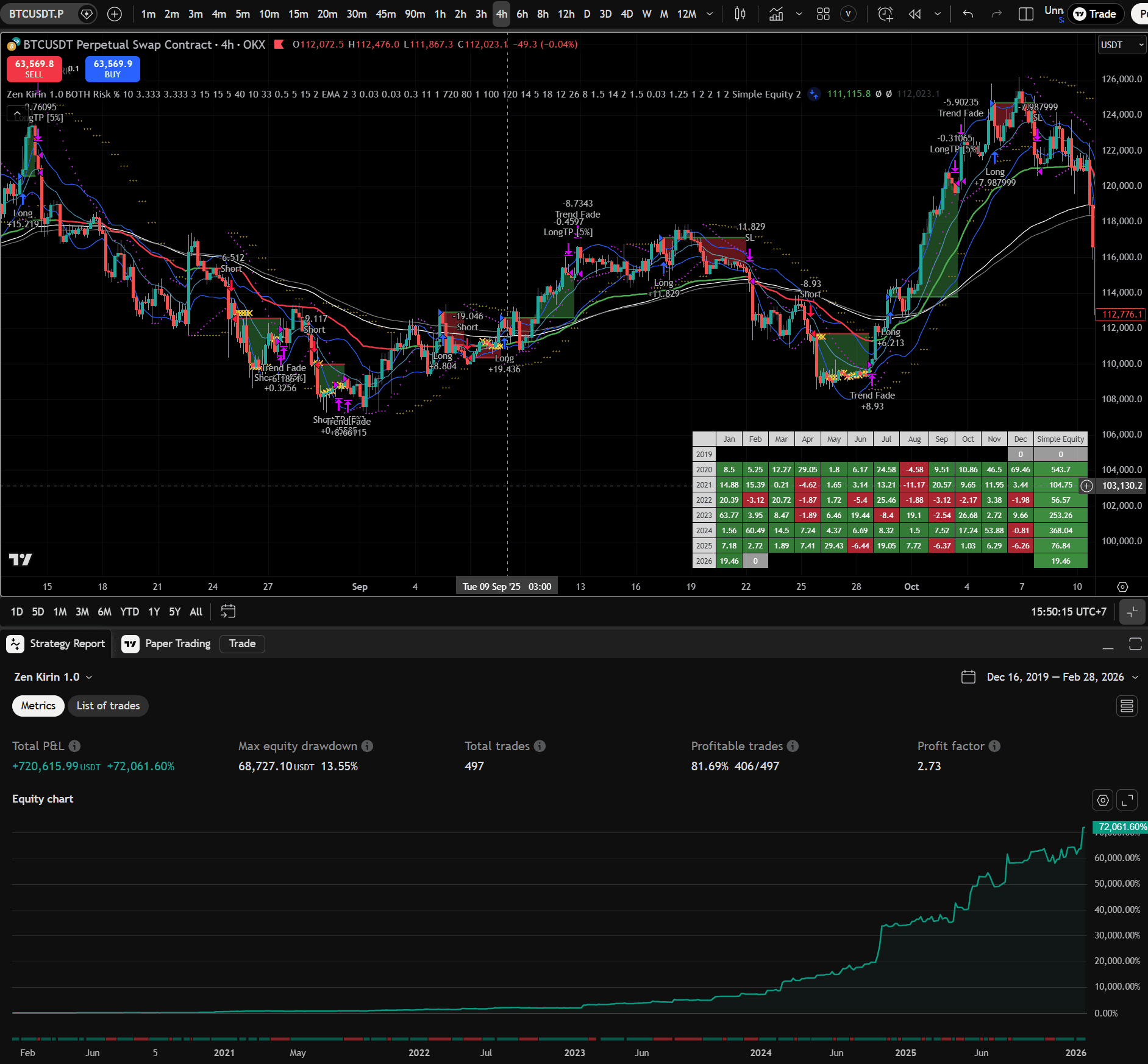
1. Review Strategy Performance
Review the strategy performance on the chart. Set your initial capital and risk per trade and other parameters.
2. Alert Preparation
Once you are satisfied with the performance, you need to prepare the alert before creating it.
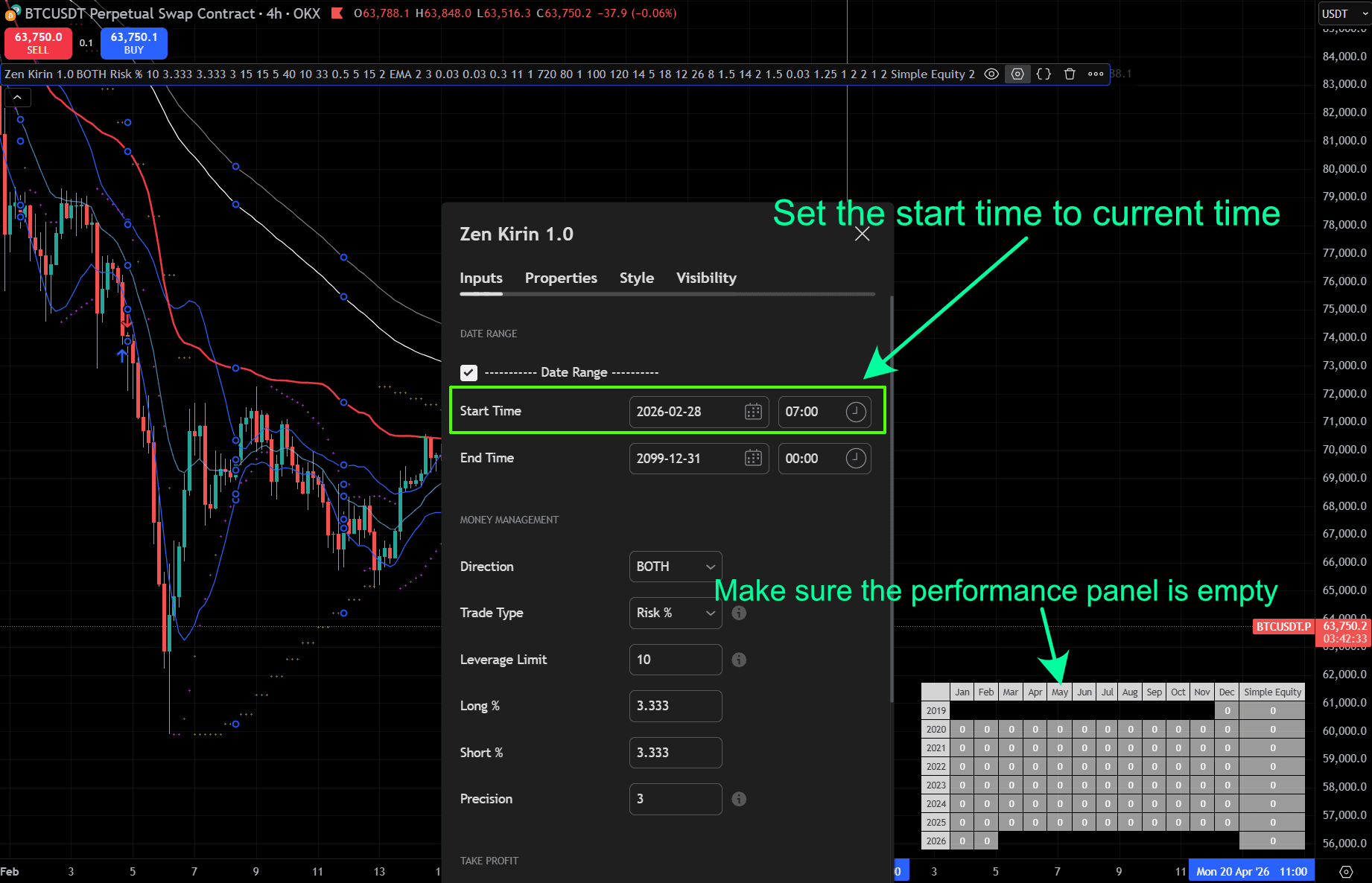
- Set the alert start time to current time.
- Set the initial capital to the amount of capital you have allocated for this strategy on exchange.
Set Alert Start Time
Set the initial Capital
Allocate the amount of capital for this strategy, this must be identical to the capital you have allocated for it on exchange.
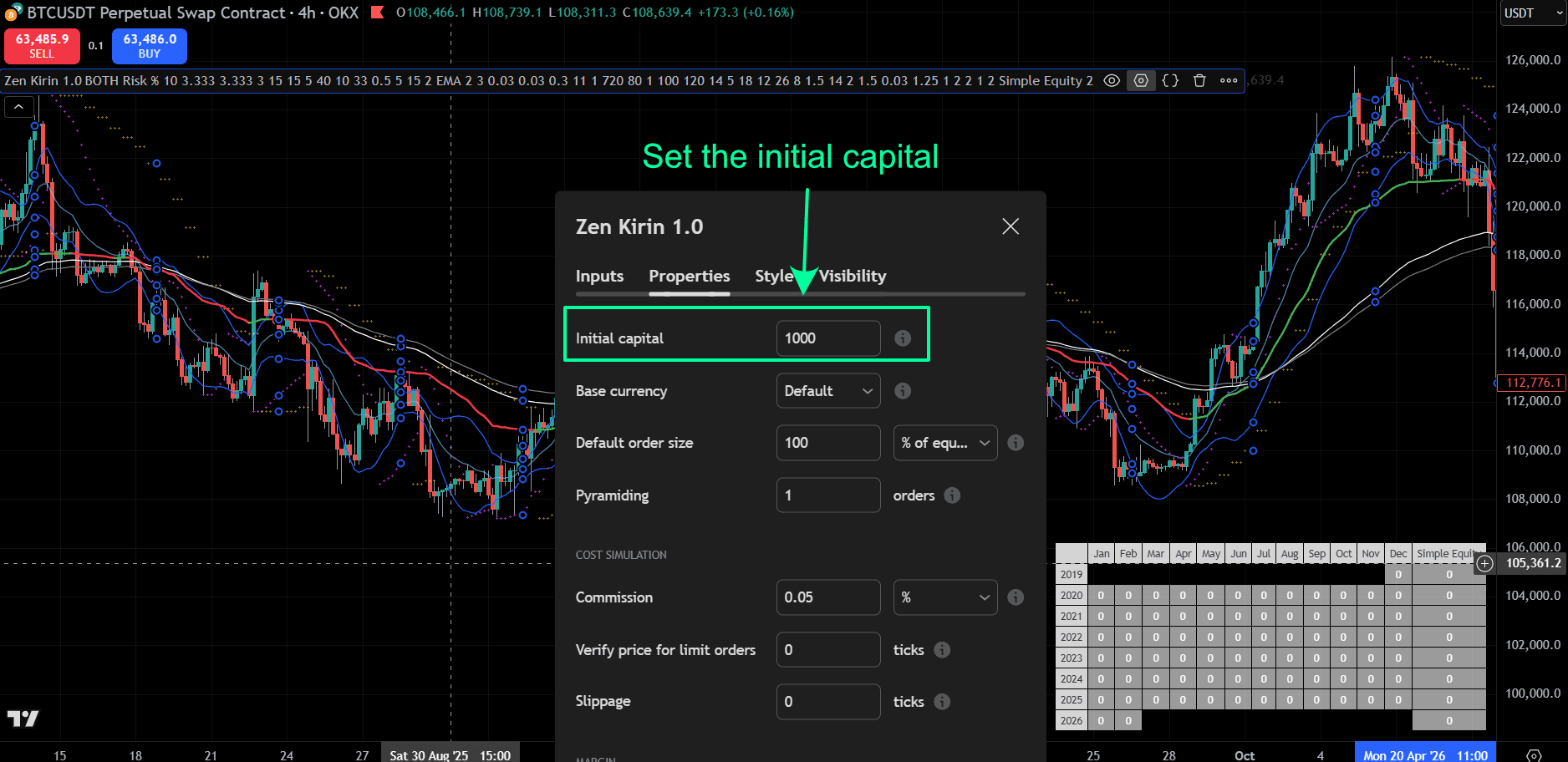
Since our strategies performance are compounded, alert preparation is required. otherwise, the strategy will trade from compounded capital, rather than the initial capital, which may cause unexpected results.
Now, you are ready to create the alert.
3. Prepare the signal bot on OKX
Before creating the alert, let’s switch to OKX, we need to prepare a signal bot there.
Select signal bot on OKX
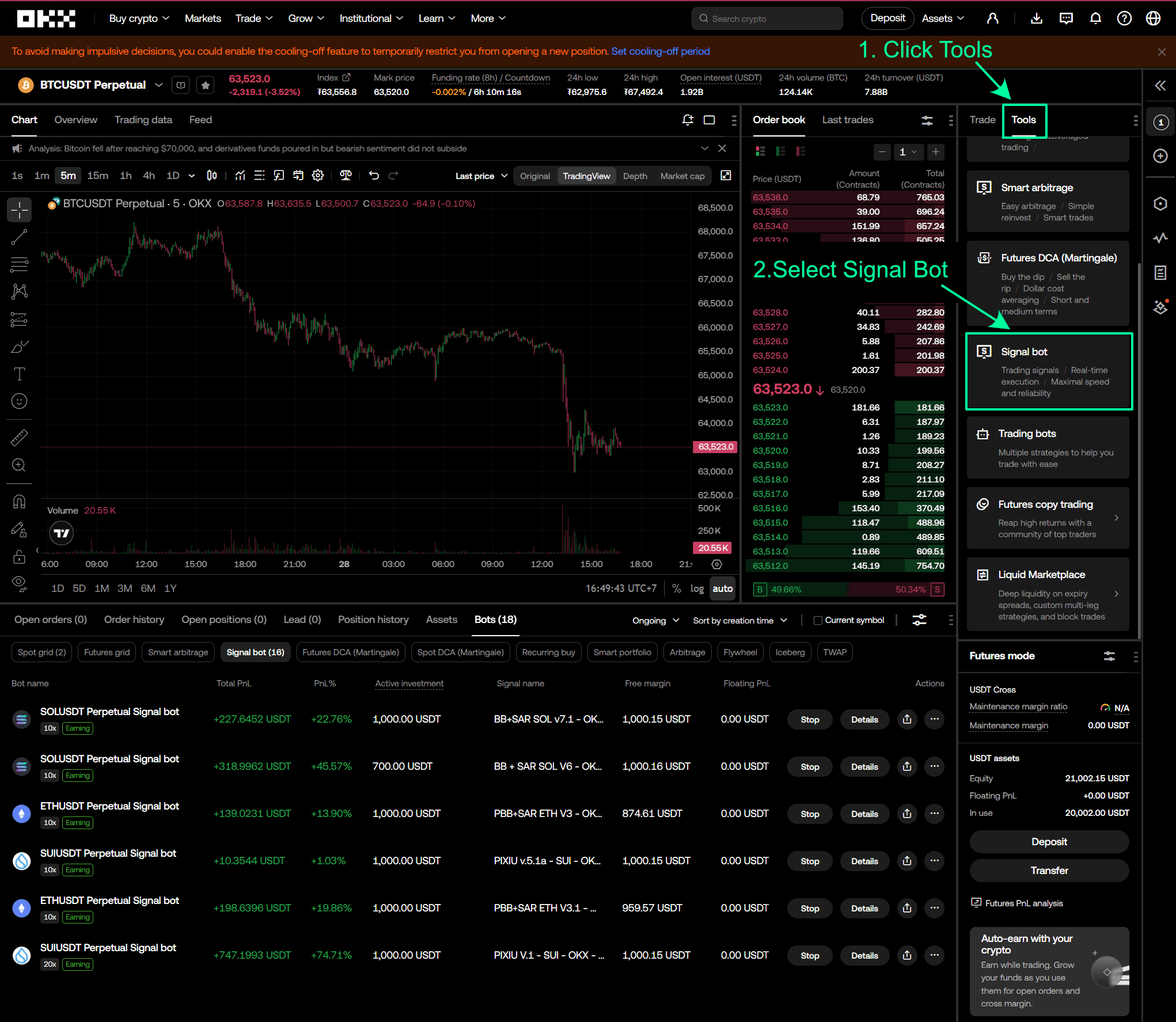
Add custom signal bot on OKX
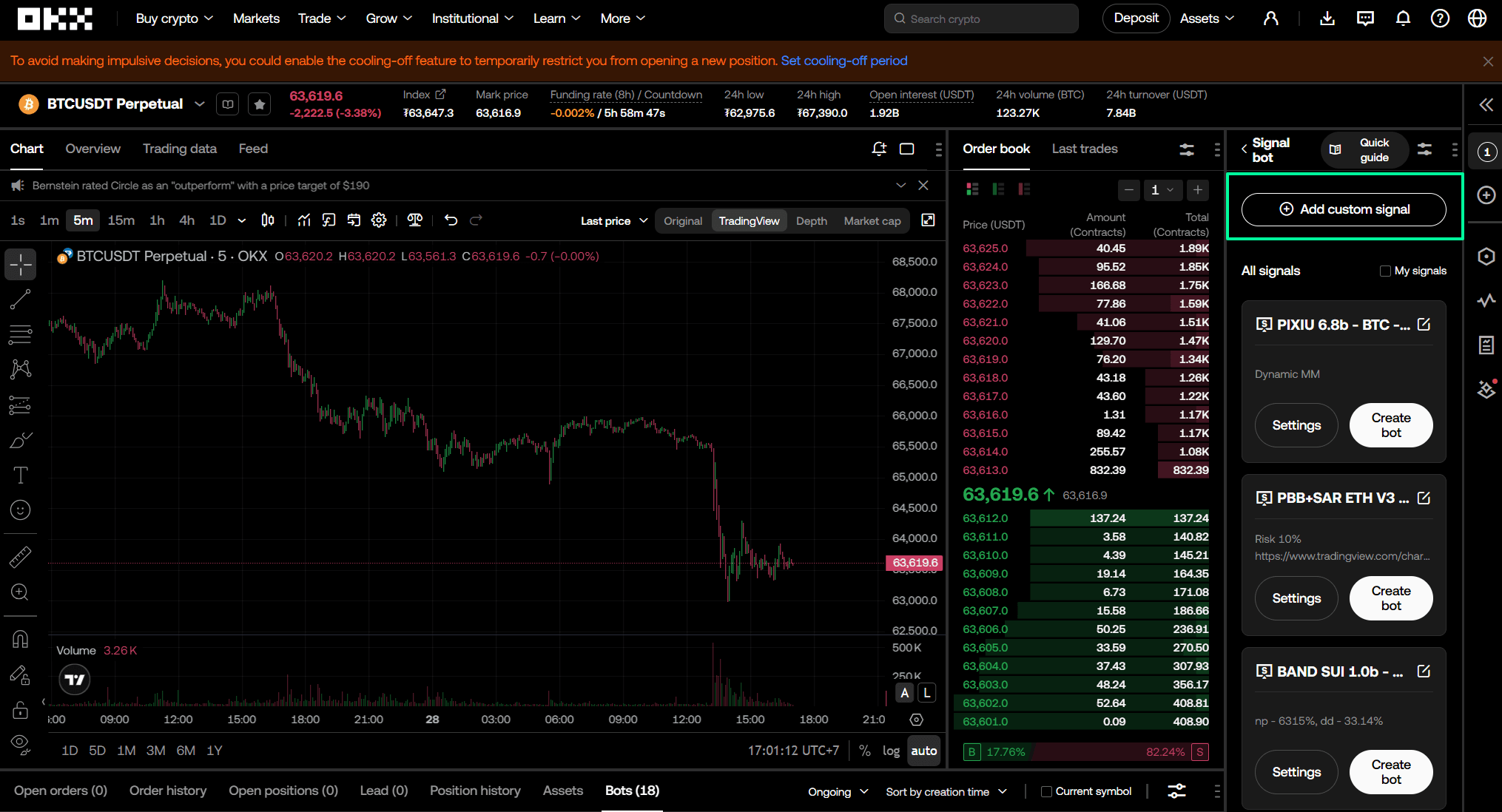
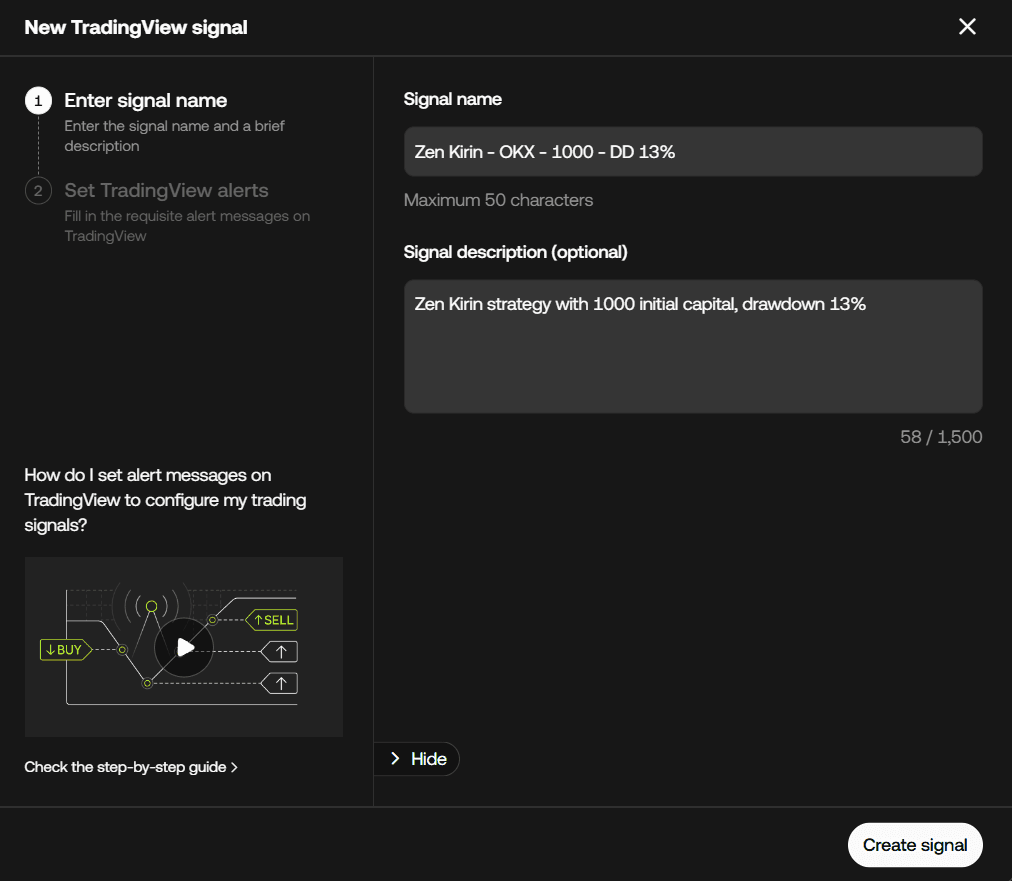
Create a tradingview signal bot on OKX
Fill the signal name and description for this signal bot.
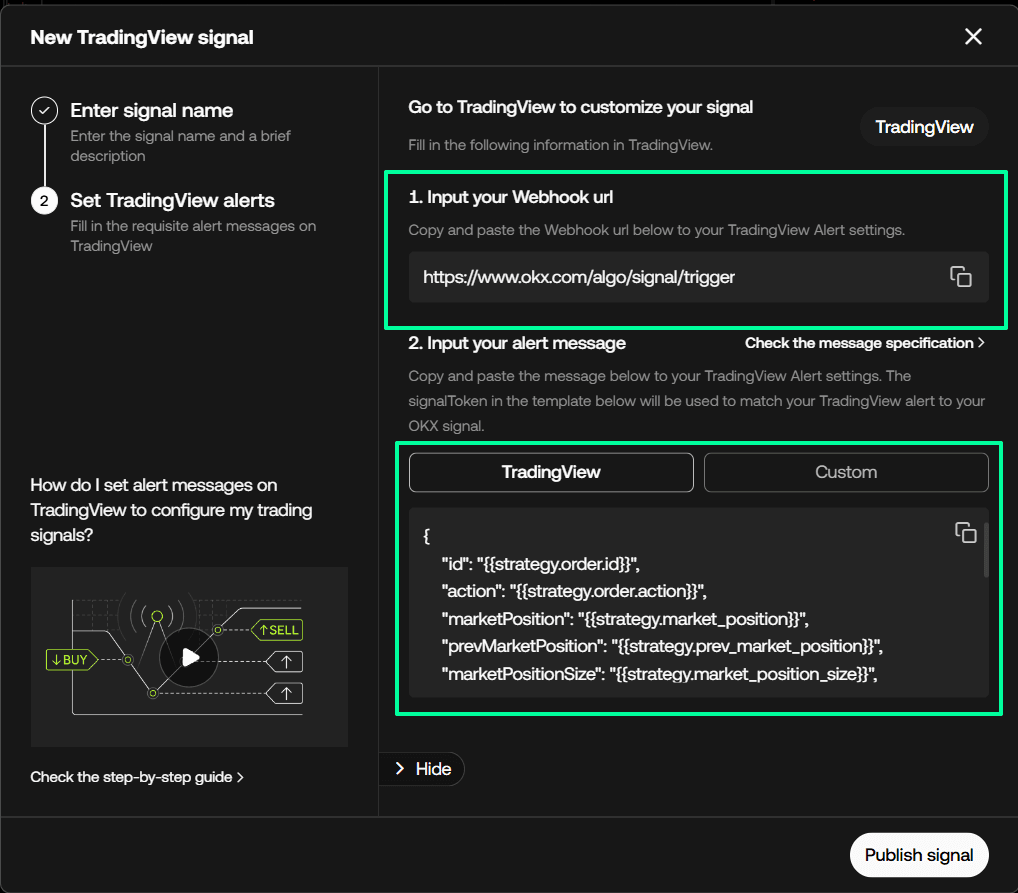
Fill the webhook and alert message
We need to copy both items back to tradingview alert.
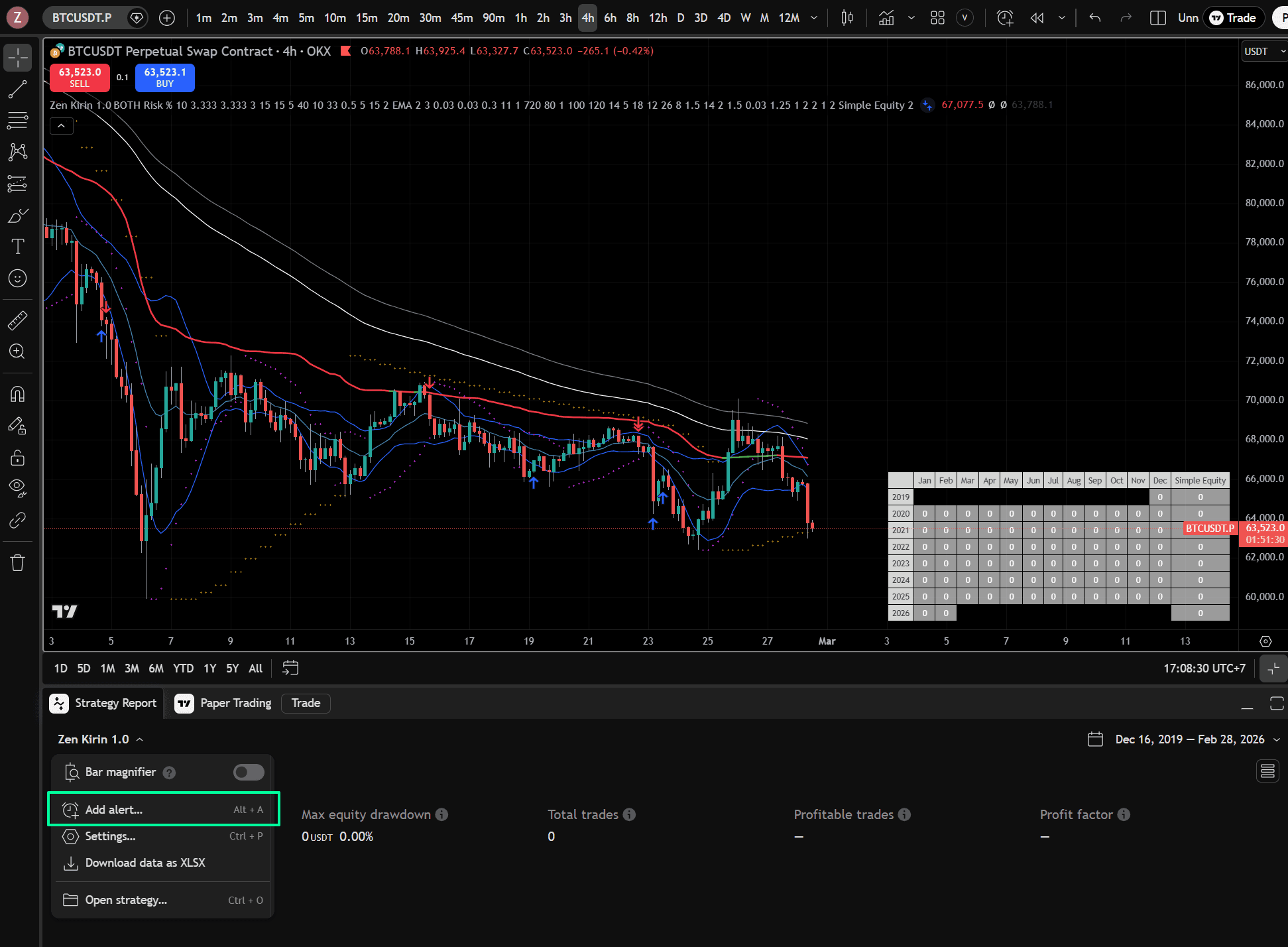
4. Alert Creation
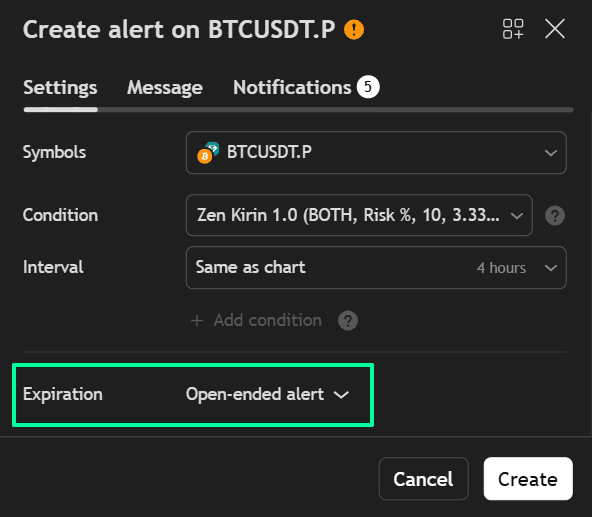
Switch back to tradingview, from the lower left corner under the strategy name, click ‘Add Alert’.
Make sure Expiration is set to ‘Open-ended alert’
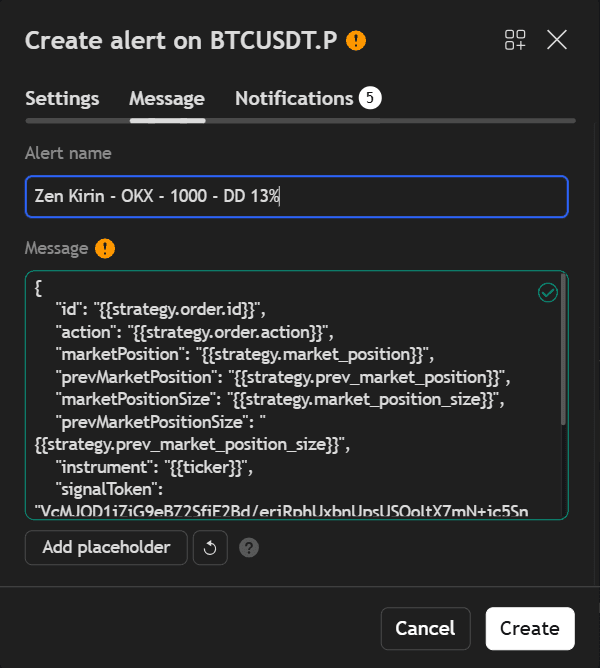
Give an alert name identical to the signal name on OKX. Copy the alert message from OKX to message box. Make sure the check icon on the top right is green.
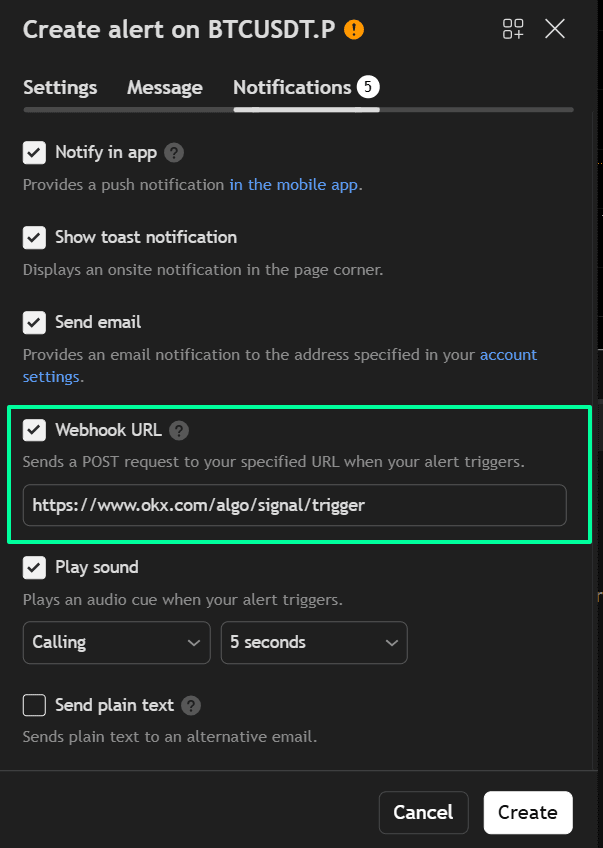
Set the webhook Url to the webhook url on OKX.
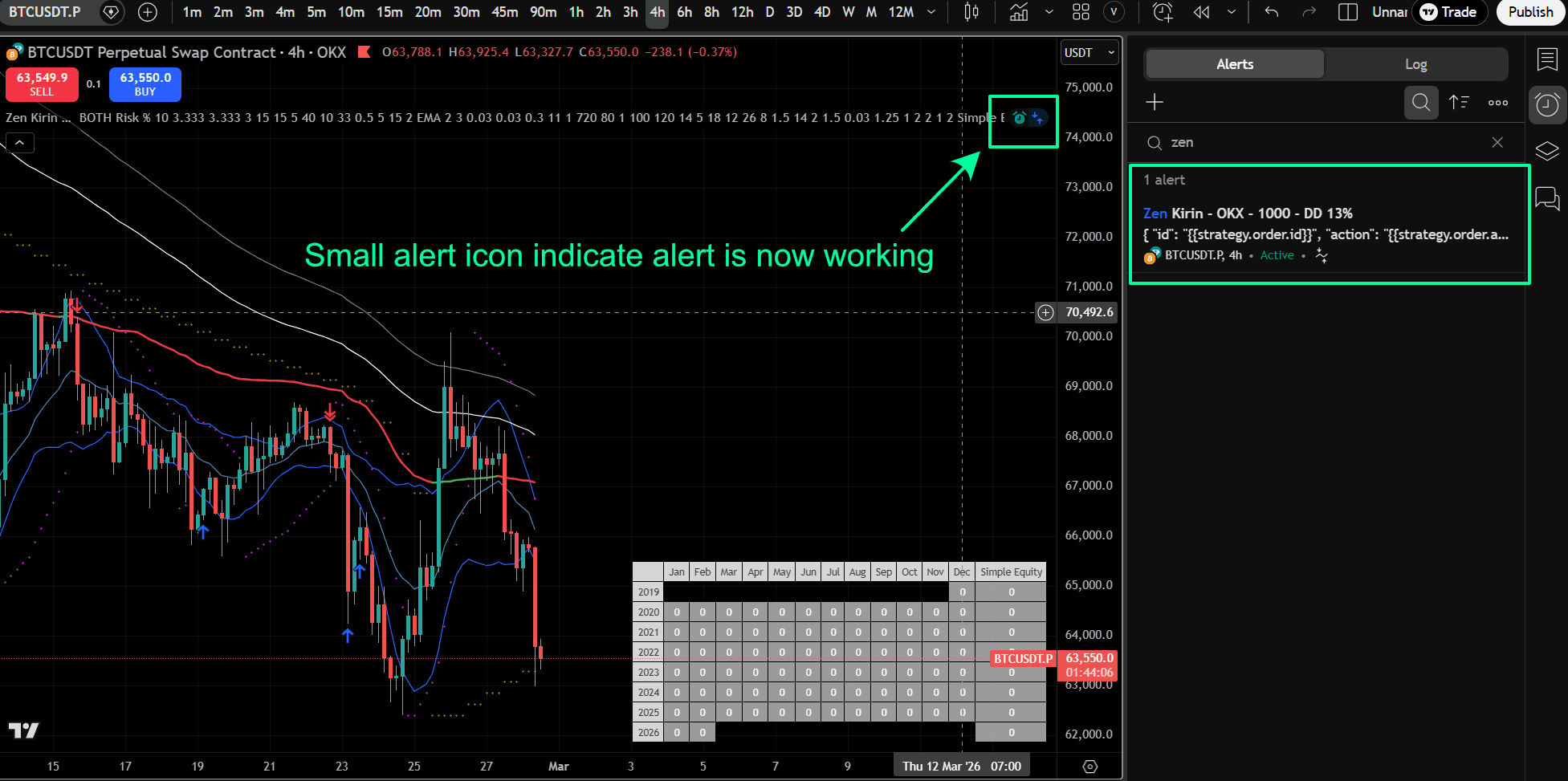
And finally, click ‘Create’ to create the alert. The newly created alert will be shown in the alert list on the right. There is also a green alert working indicator right after the the strategy name.
5. Save the alert template for later use
It is recommended to save the alert template. In case of tradingview send you the alert, you can open the template and check the result easily.
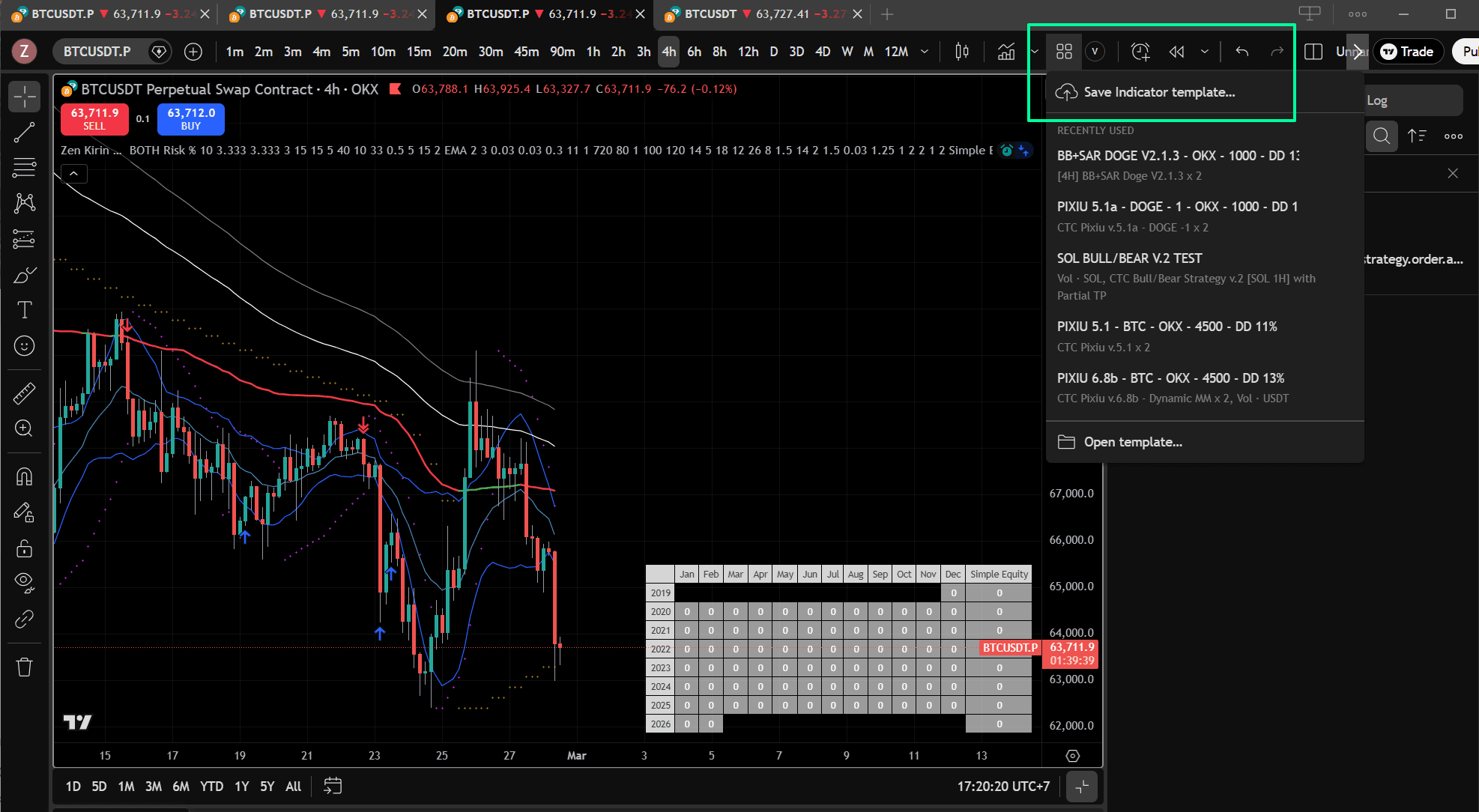
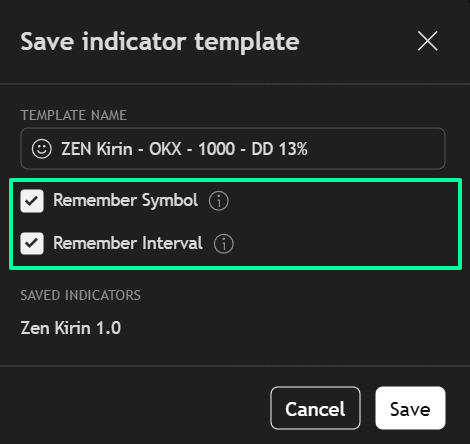
Please make sure to check both remember symbol and interval before saving the template.
Now, the process on tradingview is completed. Let’s switch back to OKX to finalize the setup.
6. Finalize the setup on OKX
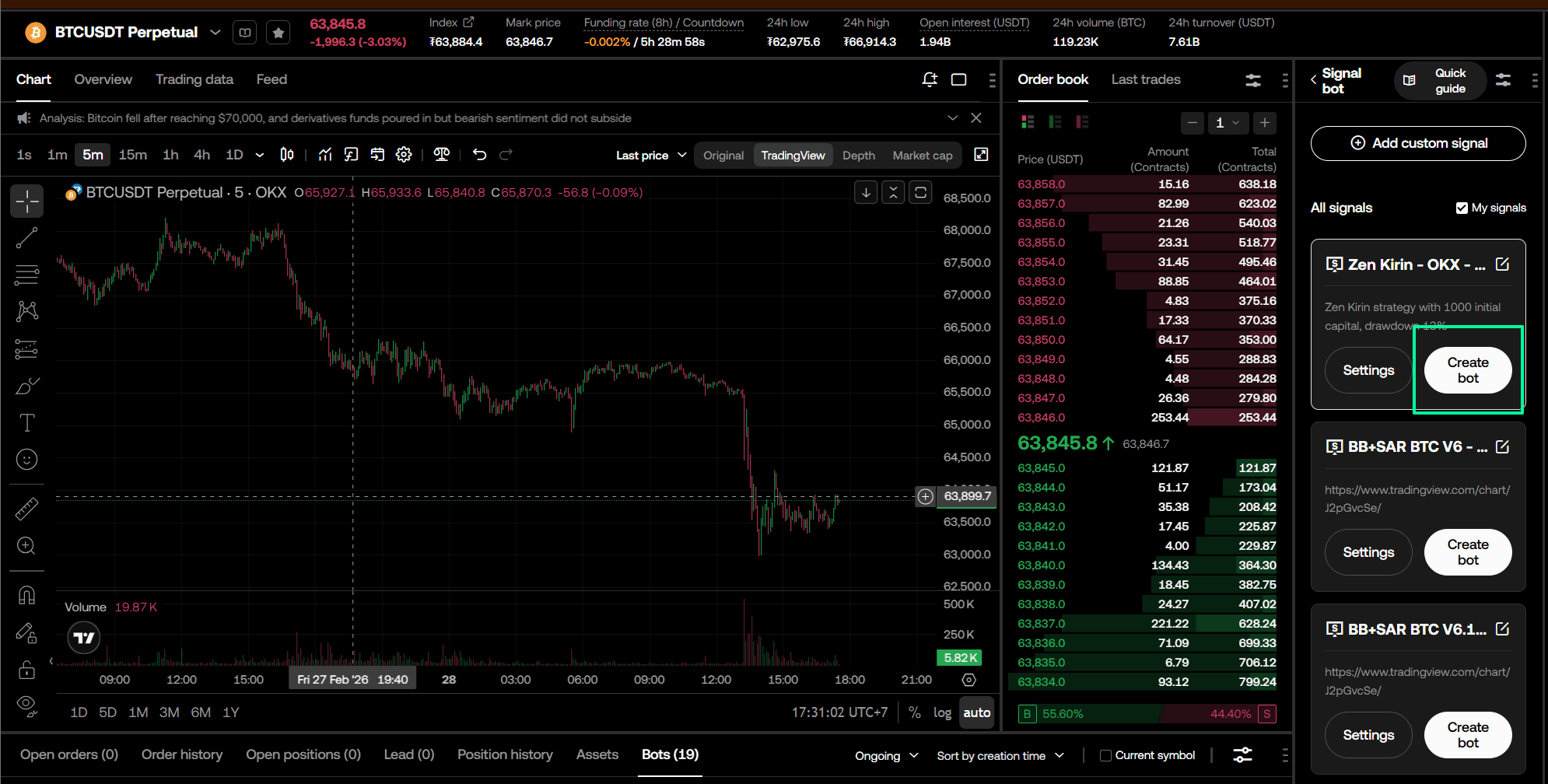
Let’s switch back to OKX, find the signal bot we created before, click ‘Create Bot’ to create the bot.
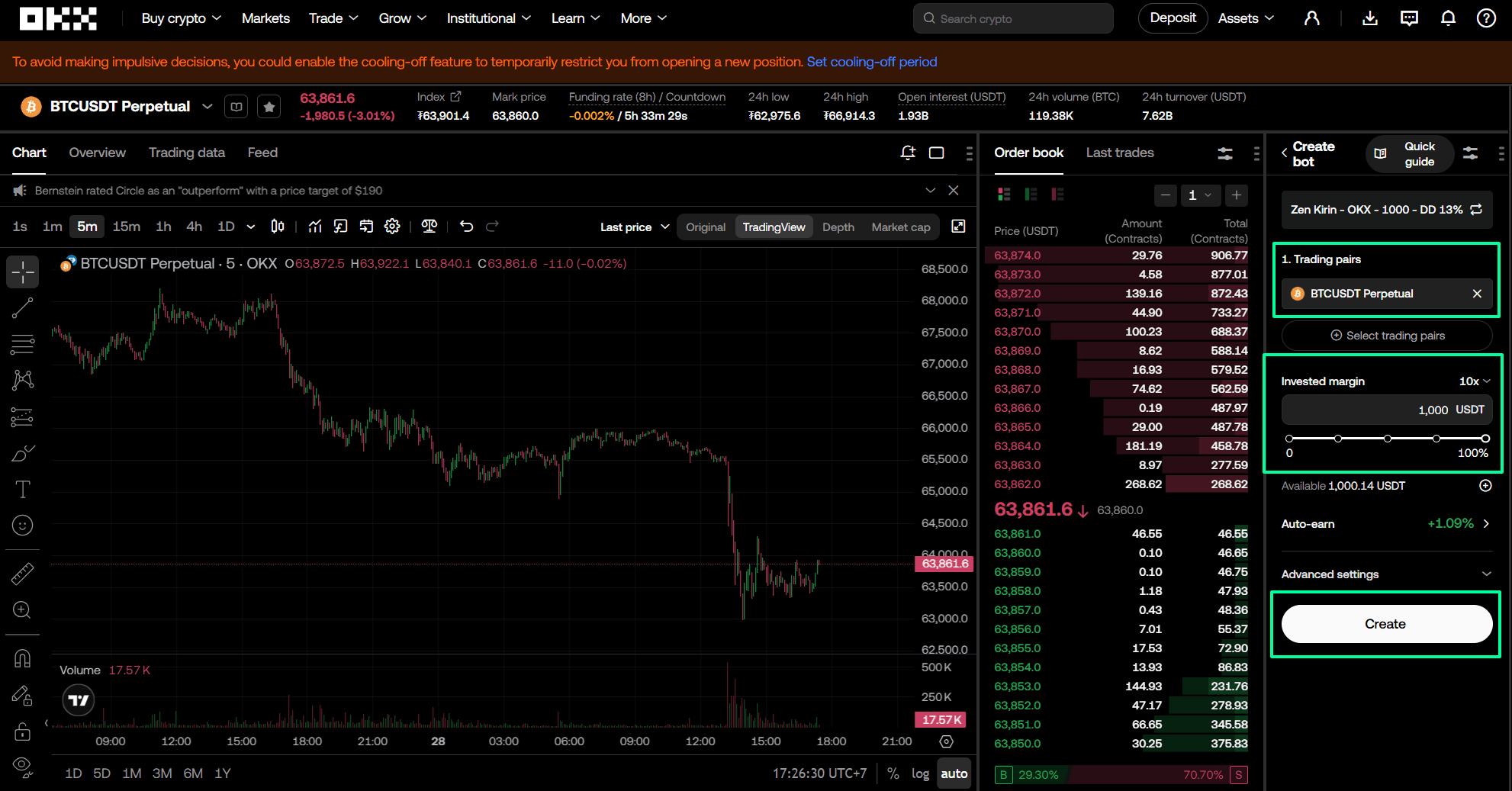
Select the trading pair, which is identical to the tradingview symbol on chart.
Set the invested margin, which is identical to the initial capital you have allocated for this strategy on exchange.
Click the ‘Create’ button to create the bot.
The bot will be created and shown in the bot list on the right.
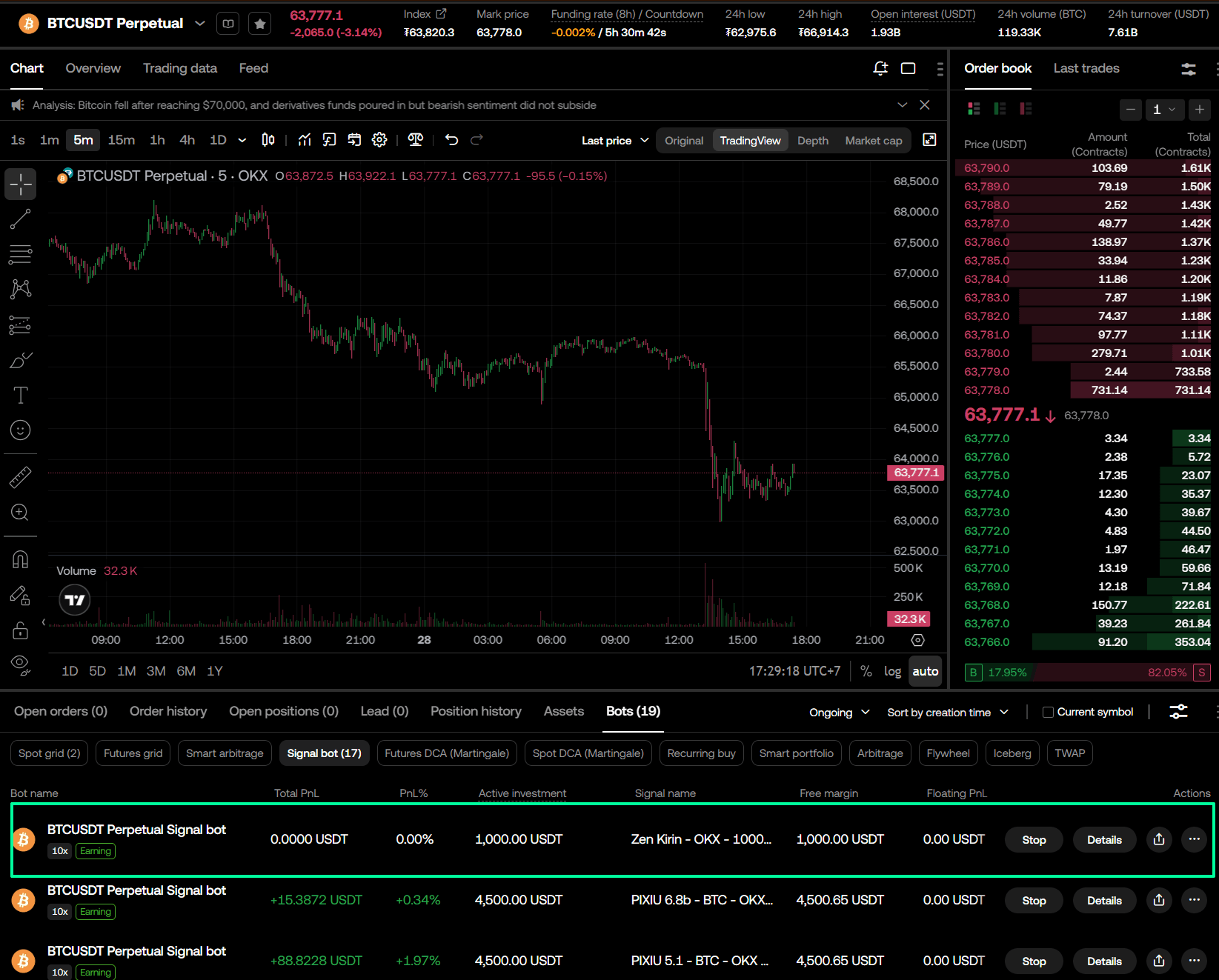
Congratulations! You have successfully completed the setup. The bot is ready to trade.